
Gather ’round, digital citizens, for today we embark on a quest to personalize your email domain! We’re talking signatures, folks, those digital scribbles that mark your messages with an air of professionalism (or playful pizzazz, if you so choose!). In this grand classroom of knowledge, we’ll conquer the Webmail interface and learn how to craft signatures that turn emails into extensions of your unique self.
But wait, you cry, where’s the signature setting hidden in this Webmail labyrinth? Fear not, for there’s no magical button for this one. We’ll need to dive into the depths of a brave explorer, navigating the treacherous waters of email settings!
How to Set up Webmail Signature
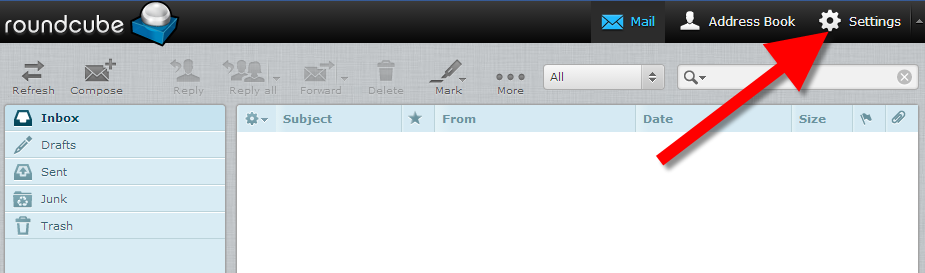
Roundcube, our trusty Webmail client.
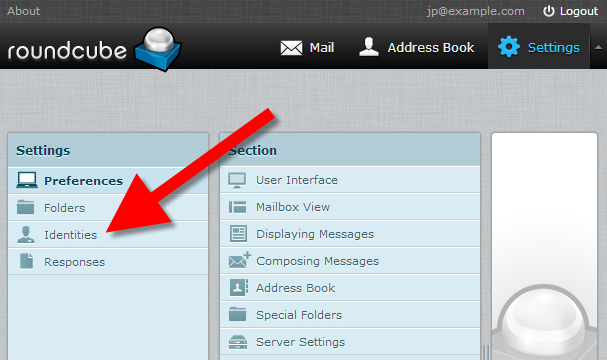
Log in, click “Settings” like a seasoned captain, and prepare to face the “Identities” panel. This, my friends, is where we mold our digital identities, and with it, our signatures!
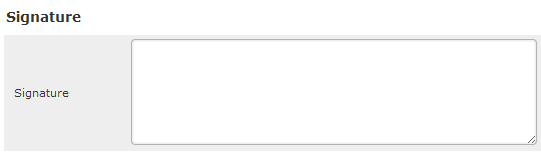
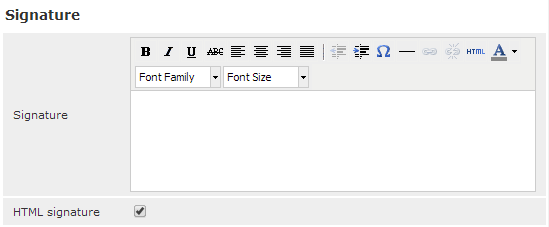
In the “Signature” box, paint your masterpiece.
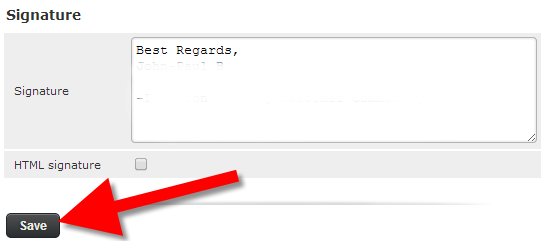
Add your name, website, witty quote, or a haiku about your cat – the possibilities are endless! Want to spice things up? Click the “HTML editor” button, a secret doorway to a world of bold fonts and colorful borders. Remember, with great power comes great responsibility, so use it wisely!
Add an image to your webmail signature in Roundcube
No worries, fellow adventurer! Follow the same steps for the signature, then click the “insert/edit image” icon – it’s like a tiny paintbrush in the toolbar. Upload your image, but be mindful of size and format limitations. No giant pixelated dragons allowed!
This image only appears in HTML messages.
To turn all your emails into HTML masterpieces, navigate to “Settings” -> “Preferences” -> “Composing Messages” and choose “always” for HTML. Now, your image shines in every digital dispatch!
Remember, this quest is yours to personalize!
Experiment with different formats, fonts, and even colors. Make your signature a reflection of your unique voice, a digital handshake that welcomes recipients into your world. With these lessons tucked in your backpack, you’ll be crafting signatures that leave a lasting impression, email after email.
Now go forth, digital knights, and conquer the world of Webmail signatures! May your messages be filled with personality and pizzazz!